Why Your ERPNext Freezes on Big Jobs
Stop making users wait for heavy work. Learn why long-running ERPNext actions time out, and how frappe.enqueue runs them in the background.
.svg)
When the Page Freezes
In ERPNext, some actions take longer than a web request is allowed to run. Imagine you need to create hundreds of Sales Invoices: you click the button, and the page freezes. Two minutes later you get a 504 Gateway Timeout. Did 300 invoices get created? 700? Nobody knows. The fix is one idea: don't make the user wait. Hand the work to a background worker. How to build a bulk invoice job that runs in the background, shows live progress, and tells exactly how many succeeded and failed.
.svg)
Step 1: Why the Page Freezes
When you click a button, the browser waits until your code finishes:
Browser → Nginx → Gunicorn (web worker) → Your Python code → Response
   ↑                                                          |
   └───────────────────── waits ──────────────────────────────┘
Every layer has a timeout, and the web worker is busy the whole time. That causes four problems:
| Layer | Typical timeout on a bench setup |
|---|---|
Nginx proxy_read_timeout | 120 seconds (set by bench; plain Nginx defaults to 60) |
| Gunicorn worker timeout | 120 seconds |
| Proxies like Cloudflare | about 100 seconds |
- Timeouts cut the job off, possibly half done.
- The site slows down, because one long job blocks one of the few web workers.
- The user guesses whether it worked, and may click again.
- Closing the tab means you never find out whether it finished.
Step 2: Meet frappe.enqueue
Think of a restaurant. The waiter takes your order and returns immediately. The kitchen cooks it frappe.enqueue is the waiter. It puts your job in a Redis queue, and a separate background worker (the kitchen) runs it.
| Queue | Default timeout | Use for |
|---|---|---|
short | 300 s | Quick tasks |
default | 300 s | Normal tasks |
long | 1500 s | Bulk and heavy jobs |
Step 3: The Basic Syntax
import frappe
from frappe.utils import nowdate

frappe.enqueue(
    "app_name.module.function_name",   # function to run in the background
    queue="default",                   # short, default or long
    timeout=300,                       # seconds before the job is stopped
    **kwargs                           # any arguments your function needs
)
Restart so workers load the new code: bench restart (or Ctrl+C, then bench start).
Call it from the browser console (F12):
frappe.call({
    method: "app_name.module.function_name",     // whitelisted Python function
    args: { key: value },                        // arguments to pass (optional)
    callback: (r) => console.log(r.message)      // runs when the server replies
})
Result: Started prints instantly, while the 10-second job runs in the background.
Step 4: Bulk Sales Invoice Creation
This example creates Sales Invoices in bulk, spread across different customers, entirely in the background. The browser gets an instant reply, a progress bar updates every 5 invoices, and a popup at the end tells how many were created and how many failed.
# Bulk Sales Invoices with different customers
# =========================================================
@frappe.whitelist()
def start_bulk_invoices(count=5):
    count = int(count)
    if count < 1 or count > 500:
        frappe.throw("Please enter a number between 1 and 500.")

    frappe.enqueue(
        "enqueue_demo.api.create_invoices",
        queue="long",
        timeout=1800,
        count=count,
        user=frappe.session.user,
    )
    return f"Creating {count} invoices in the background."

def create_invoices(count, user):
    company = "FOSSERP"
    item_code = "Bag"

    customers = frappe.get_all(
        "Customer",
        filters={"disabled": 0},
        pluck="name",
        limit=5,
    )
    if not customers:
        frappe.log_error(title="No customers found", message="Create a Customer first.")
        return

    created, failed = [], 0

    for i in range(1, count + 1):
        customer = customers[(i - 1) % len(customers)]

        try:
            si = frappe.get_doc({
                "doctype": "Sales Invoice",
                "customer": customer,
                "company": company,
                "posting_date": nowdate(),
                "due_date": nowdate(),
                "items": [{"item_code": item_code, "qty": 1, "rate": 1000}],
            })
            si.insert()
            si.submit()
            frappe.db.commit()
            created.append(f"{si.name} ({customer})")
        except Exception:
            frappe.db.rollback()
            failed += 1
            frappe.log_error(
                title=f"Invoice {i} failed for {customer}",
                message=frappe.get_traceback(),
            )

        if i % 5 == 0 or i == count:
            try:
                frappe.publish_progress(
                    percent=i * 100 / count,
                    title="Creating Invoices",
                    description=f"{i} of {count}",
                )
            except Exception:
                pass
    try:
        frappe.publish_realtime(
            "msgprint",
            f"Done. Created: {len(created)}, Failed: {failed}.",
            user=user,
        )
    except Exception:
        pass
Things to notice
- Transaction per invoice: each invoice is committed individually, and a failure rolls back only that invoice, so one error does not affect the rest of the batch.
- Error logging:
frappe.log_errorrecords the full traceback in the Error Log, and the job continues with the next invoice. - Progress updates:
frappe.publish_progressupdates the progress bar every 5 invoices and on the final one, which keeps the user informed without sending excessive real-time events. - Safe notifications: the progress and completion messages are wrapped in
try/except, so a notification failure cannot interrupt the job. - Customer rotation: invoices are distributed across available customers, and the
createdlist records each invoice with its customer.
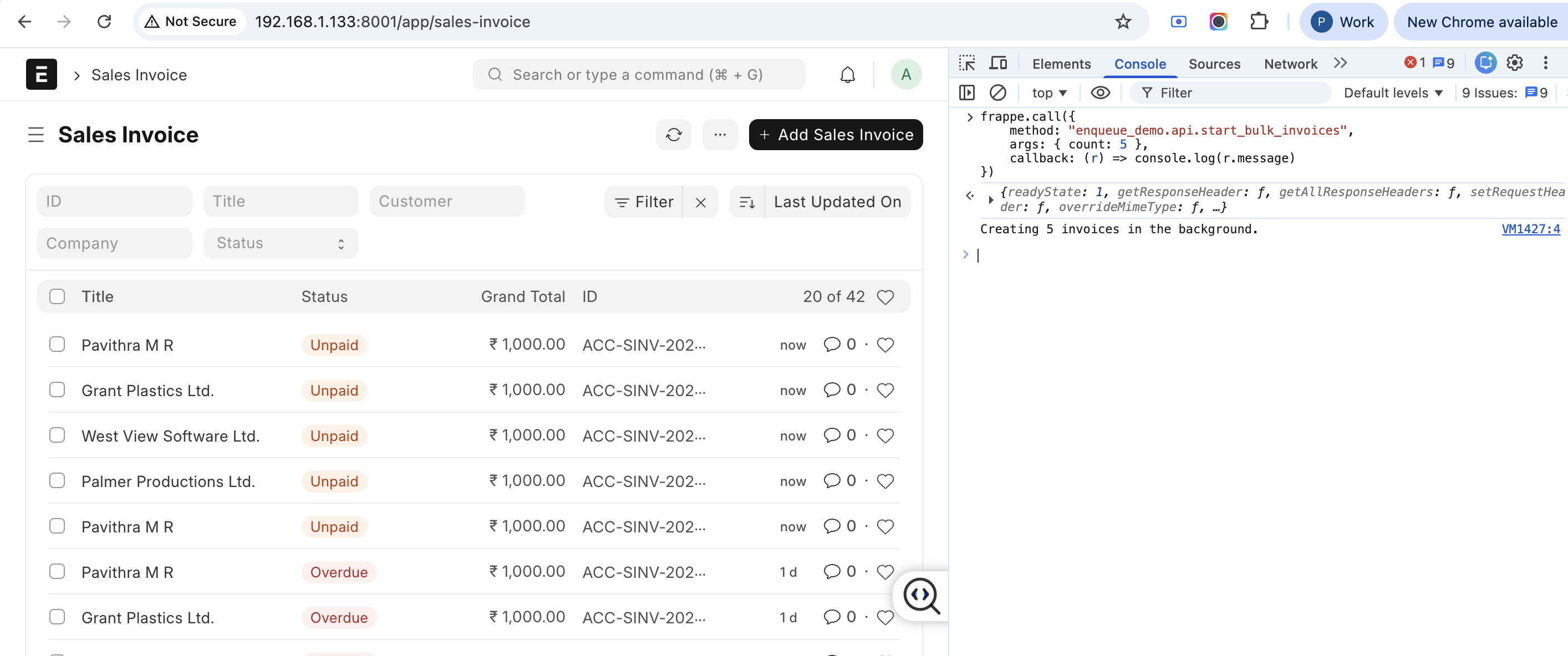
Call it from the console:
frappe.call({
    method: "enqueue_demo.api.start_bulk_invoices",
    args: { count: 5 },
    callback: (r) => console.log(r.message)
})
Step 5: The Mistakes We Actually Hit
| What we saw | Cause | Fix |
|---|---|---|
No module named 'enqueue_demo.api' | Wrong path, or app not set up | Use app.module.function and check the app is installed |
has no attribute 'start_bulk_invoices' | Function missing from the file, or worker on old code | Check the file, then restart bench start |
unexpected keyword argument 'user' | The keyword arguments passed to enqueue don't match the job function's parameters | Make the function's parameters match exactly what you pass (read the full exception in RQ Job) |
OutgoingEmailError | sendmail needs a default outgoing Email Account | Set one up, or avoid email in the demo |
| More invoices than expected | A crashed run had already committed some, then we ran it again | Make jobs safe to rerun: check what already exists before creating |
The biggest lesson: the browser said "Started" even when the job failed inside the worker. Always check /app/rq-job and read the Exception.
Debug tip: run the function immediately to see the full error:
frappe.enqueue("enqueue_demo.api.create_invoices", now=True, count=1, user="Administrator")Recap
- Web requests have timeouts and block workers.
frappe.enqueuehands work to a background worker and replies instantly.- Restart after code changes.
- Verify in
/app/rq-joband the Error Log. - Commit per record, log failures, make jobs safe to rerun.
- Fix slow code first, then enqueue.
No comments yet. Login to start a new discussion Start a new discussion