Bank Reconciliation and Bank Integration
ERPNext v16 simplifies bank reconciliation and integration, reduces manual work, and keeps financial records accurate.
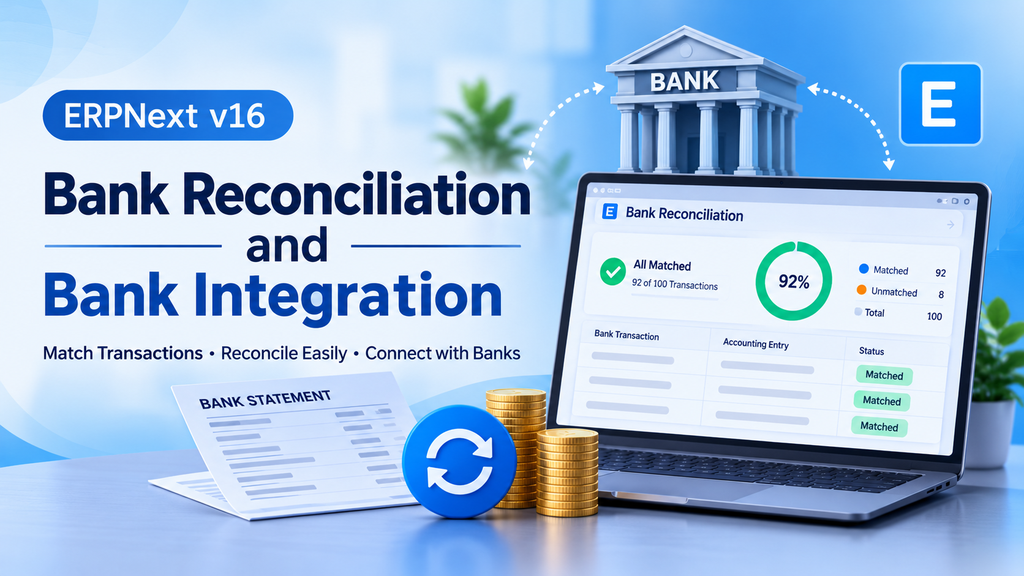
What if your banking activities could be simpler, faster and more organised? With ERPNext v16, bank reconciliation and supported bank integration help finance teams match transactions, reduce manual work and keep accounting records accurate.
Bring your bank statement and accounting records together in one place. ERPNext helps you match transactions, spot differences and review unmatched entries with greater clarity.
With supported banking connectors, you can also simplify statement fetching and payment-related activities—making everyday banking work easier to manage.
See Bank Reconciliation in Action
Bank Reconciliation demonstration in ERPNext v16
Watch how bank transactions can be managed and reconciled in ERPNext.
The Basic Idea
Let's understand this with a simple example.
Suppose you make a payment to a supplier and record it in ERPNext using a Payment Entry.
Later, the same payment appears in your bank statement as a debit of ₹50,000. Bank Reconciliation helps you match these two records.
There are two important records involved:
Bank Transaction
The transaction imported from your bank statement.
Payment Entry or Journal Entry
The accounting transaction already recorded in ERPNext.
Important: Importing a bank statement does not automatically create accounting entries. It creates Bank Transaction records that can be matched with existing transactions.
How to Set Up Bank Reconciliation
Before starting the reconciliation process, make sure the Bank and Bank Account records are properly configured in ERPNext.
The Bank Account should be linked to the correct bank ledger in the Chart of Accounts. This ensures that transactions are matched with the correct account.
Steps to Perform Bank Reconciliation
The reconciliation process can be understood through these five steps:
-
Import the Bank Statement
Upload your bank statement into ERPNext. You can map the statement columns, such as date, description, debit, credit and reference number.
-
Bank Transactions Are Created
After importing the statement, ERPNext creates Bank Transaction records from the statement entries.
-
Match Transactions
Match the imported Bank Transactions with existing Payment Entries, Journal Entries or other relevant vouchers.
-
Check Unmatched Transactions
Review transactions that are not matched. Check the reason before creating any new accounting entry. This helps avoid duplicate entries.
-
Verify the Closing Balance
After reconciliation, check the bank statement closing balance against the balance in ERPNext.
What About Bank Charges and Interest?
Sometimes, bank statements contain transactions that are not already recorded in ERPNext. For example, bank charges or interest received.
These transactions need to be reviewed and recorded using the appropriate accounting entries. Once the entries are created, they can be matched with the corresponding Bank Transactions.
Auto Reconciliation
ERPNext also provides an Auto Reconcile option to help match transactions automatically. It can use details such as reference numbers to identify matching entries.
This can reduce manual work, especially when there are many transactions to reconcile. However, unmatched transactions should still be reviewed by the finance team.
Bank Integration in ERPNext
Apart from manual bank statement uploads, ERPNext can also connect with supported banks through banking connectors.
With bank integration, users may be able to fetch bank statements and perform payment-related activities directly through the connected banking setup.
Manual Process vs Bank Integration
Manual Process
Users download the bank statement from the bank's website and upload it into ERPNext.
Bank Integration
With a supported banking connector, bank-related information can be exchanged between the bank and ERPNext through the configured integration.
India Banking App and Connector Setup
For India banking integration, the India Banking app can be used along with a bank-specific connector.
The setup may require details such as a static IP address, certificates, encryption keys and approved API access from the bank.
There are two main components involved:
India Banking App
This app is installed on the ERPNext site to support banking-related functionality.
Bank-specific Connector Server
This server communicates with the bank's APIs and exchanges information with the ERPNext site.
If you are using a shared Frappe Cloud bench, the India Banking app is installed on the ERPNext site, while the connector server needs to be configured separately.
Features of Bank Integration
Depending on the bank and the connector configuration, the integration may support the following features:
| Feature | Description |
|---|---|
| Statement Fetching | Fetch bank statements directly from the bank through the supported integration. |
| Vendor Payments | Initiate vendor payments through the supported banking integration. |
| Salary Payments | Process salary payments through the bank where the required functionality is supported. |
| Easier Matching | Use fetched bank transactions to simplify the reconciliation process. |
| Virtual Accounts | Use virtual account facilities where supported by the bank and connector. |
| Payment Status | Check payment status through the available banking integration. |
Important Points Before Setting Up Bank Integration
Bank integration depends on the bank's API availability, account permissions and connector support. Not every bank supports all the features mentioned above.
Before starting the setup, check the following:
- Whether your bank supports the required API integration.
- Whether API access has been approved by the bank.
- Whether a static IP address is required.
- Whether certificates and encryption keys are required.
- Which payment and statement-related features are supported.
Benefits of Bank Reconciliation and Integration
Using Bank Reconciliation and supported bank integration can help finance teams manage their banking activities more efficiently.
Less Manual Work
Reduces the time spent downloading, preparing and handling bank statement files.
Fewer Typing Mistakes
Reduces manual data entry and the chances of errors.
Better Transaction Tracking
Helps finance teams understand and track money coming into and going out of the business.
Simpler Payments
Supports vendor and salary payment activities where the bank integration provides these options.
Better Reconciliation
Makes it easier to identify matched and unmatched transactions.
Clear Audit Records
Keeps bank transactions and accounting records organised for future reference.
Conclusion
Bank Reconciliation in ERPNext v16 helps finance teams compare bank statement entries with accounting transactions and identify differences. Instead of checking every transaction manually, users can import statements, match entries and review unmatched transactions in one place.
With supported bank integration, the process can become even easier by reducing manual statement handling and supporting payment-related activities.
Overall, these features help businesses manage their banking activities more efficiently and maintain accurate accounting records.
No comments yet. Login to start a new discussion Start a new discussion