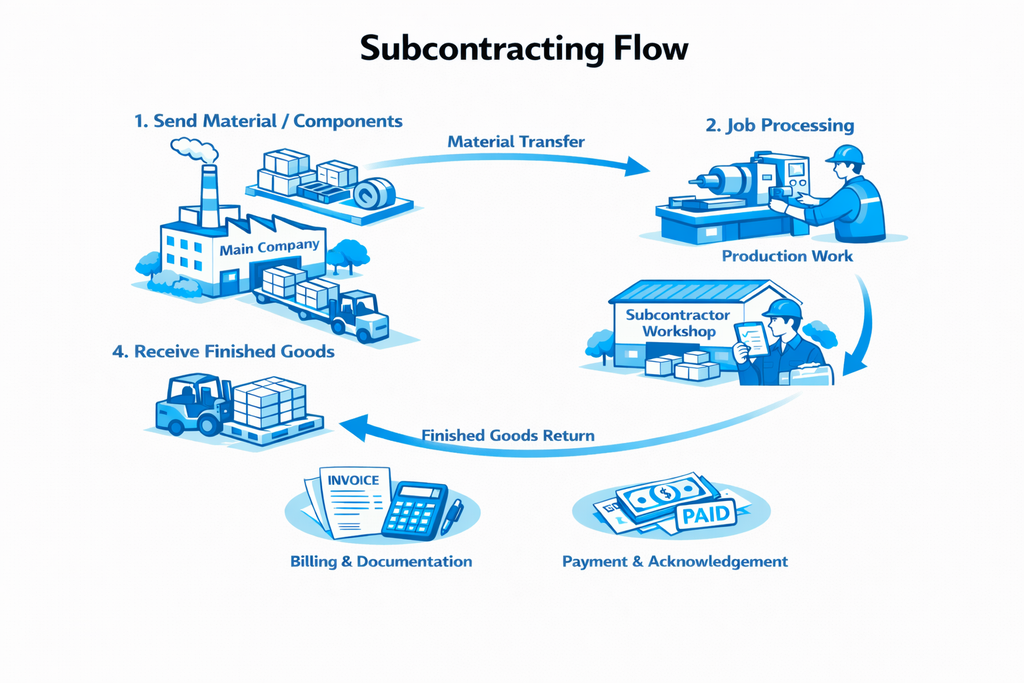
Subcontracting is a powerful feature in ERPNext that simplifies the process of managing job work received from customers. When a company is assigned work that involves using the customer's raw materials or semi-finished goods, ERPNext helps track every stage—from receiving the order, to inwarding materials, executing the work order, and finally delivering the finished goods back to the customer.
Step-by-Step Guide with Example
Follow this comprehensive guide to implement the subcontracting inward process in ERPNext Version 16.
Company V & M Furniture LLP Receives an Order to Manufacture 1000 Wooden Chairs
1.1 Create a Service Item (Chair Manufacturing Order)
- Disable 'Maintain Stock' for this service item
1.1.1 Create Finished Good Item in Item Master
- Enable the 'Is Subcontracted Item' checkbox
- Set the default Bill of Materials (BOM)
1.1.2 Create Raw Material Item in Item Master
- Enable 'Is Customer Provided Item'
- Select the customer providing the material
- Disable 'Allow Purchase' (since it's customer-provided)
1.2 Create a Bill of Materials (BOM) for Finished Good
- Finished Good Item: Wooden Chair
- Raw Material: Plywood Sheet
- Create BOM: BOM-Wooden Chair-001
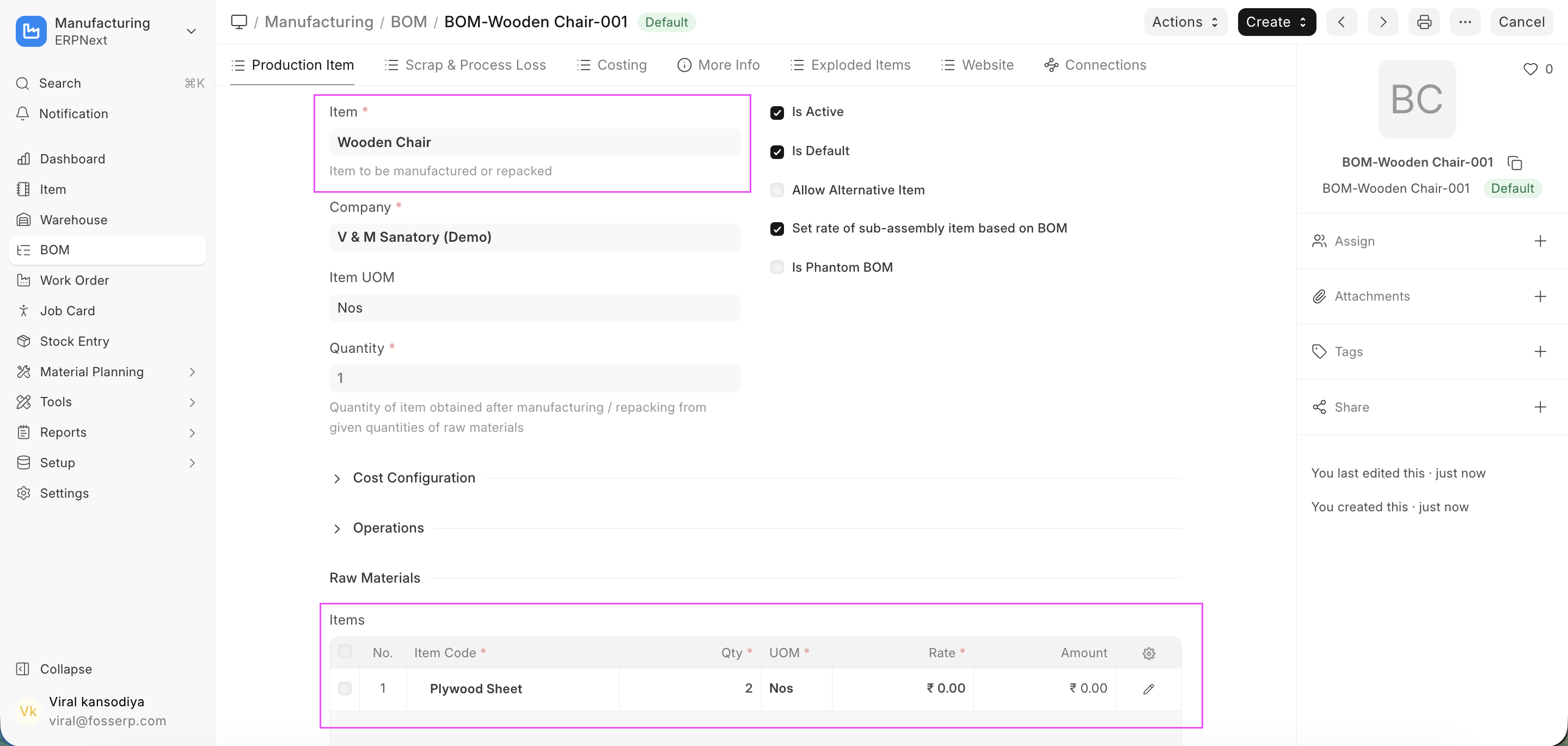
Creating a Bill of Materials for the Wooden Chair
1.3 Create a Warehouse to Receive Materials from Customer
- Add warehouse name (e.g., "Customer Material - V & M Furniture")
- In the Customer field, add the relevant customer
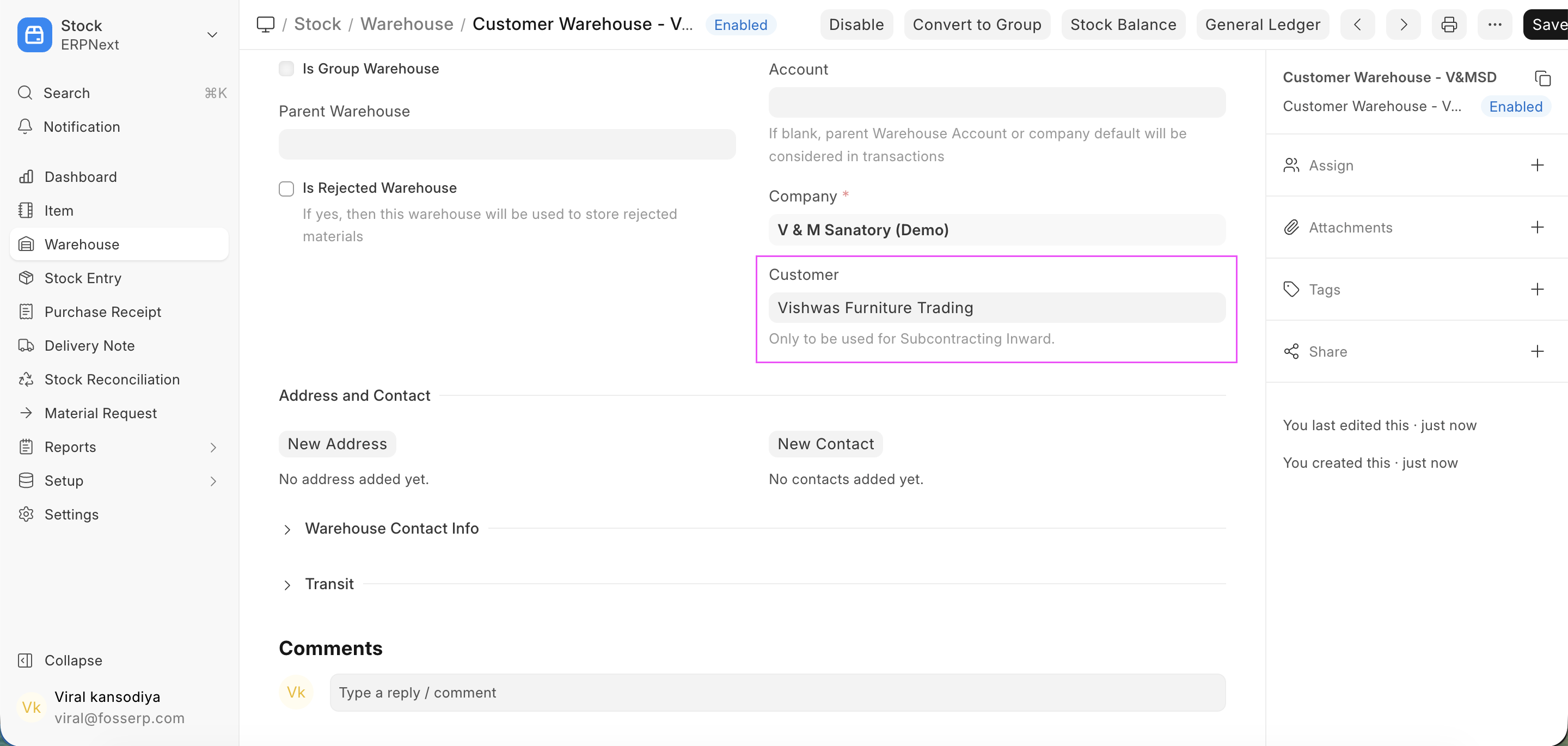
Setting up a dedicated customer material warehouse
Create a Sales Order
- Select the customer
- Enable the checkbox 'Is Subcontracted'
- In the item table, select the service type item in the 'Item Code' field
- In the item table, select the finished good item in the 'Finished Good' field
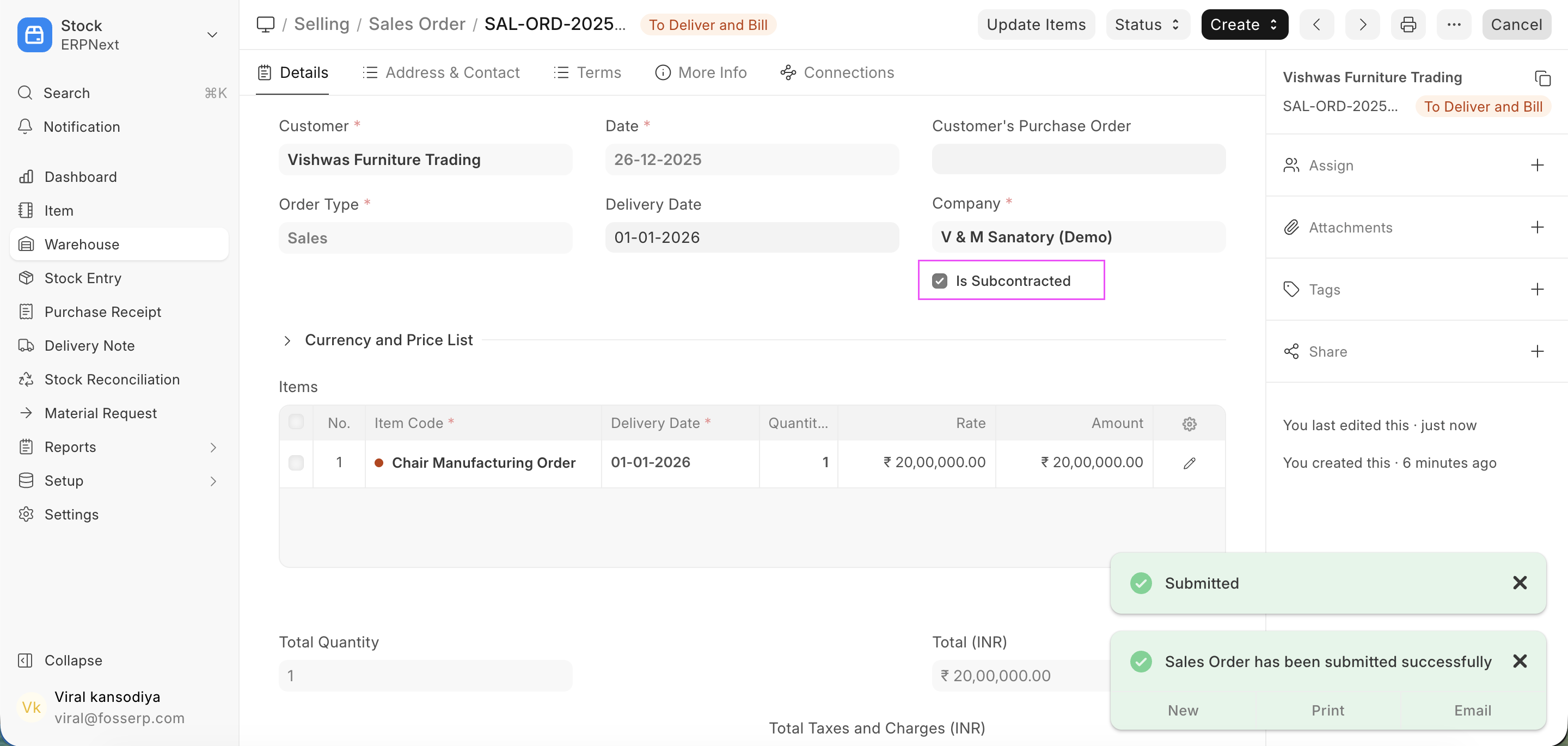
Creating a Sales Order with subcontracting enabled
2.1 Create a Subcontracting Inward Order from Sales Order
Click on the "Create" dropdown menu in the Sales Order, and select the "Subcontracting Inward Order" option.
Once on the subcontracting inward order page, verify the following points:
- Customer Warehouse should be selected correctly
- Quantity should match the manufacturing quantity you plan to produce. For example: If the order is for 1000 units, but you're currently manufacturing only 200 units, set the quantity to 200. The system will inward materials according to the BOM.
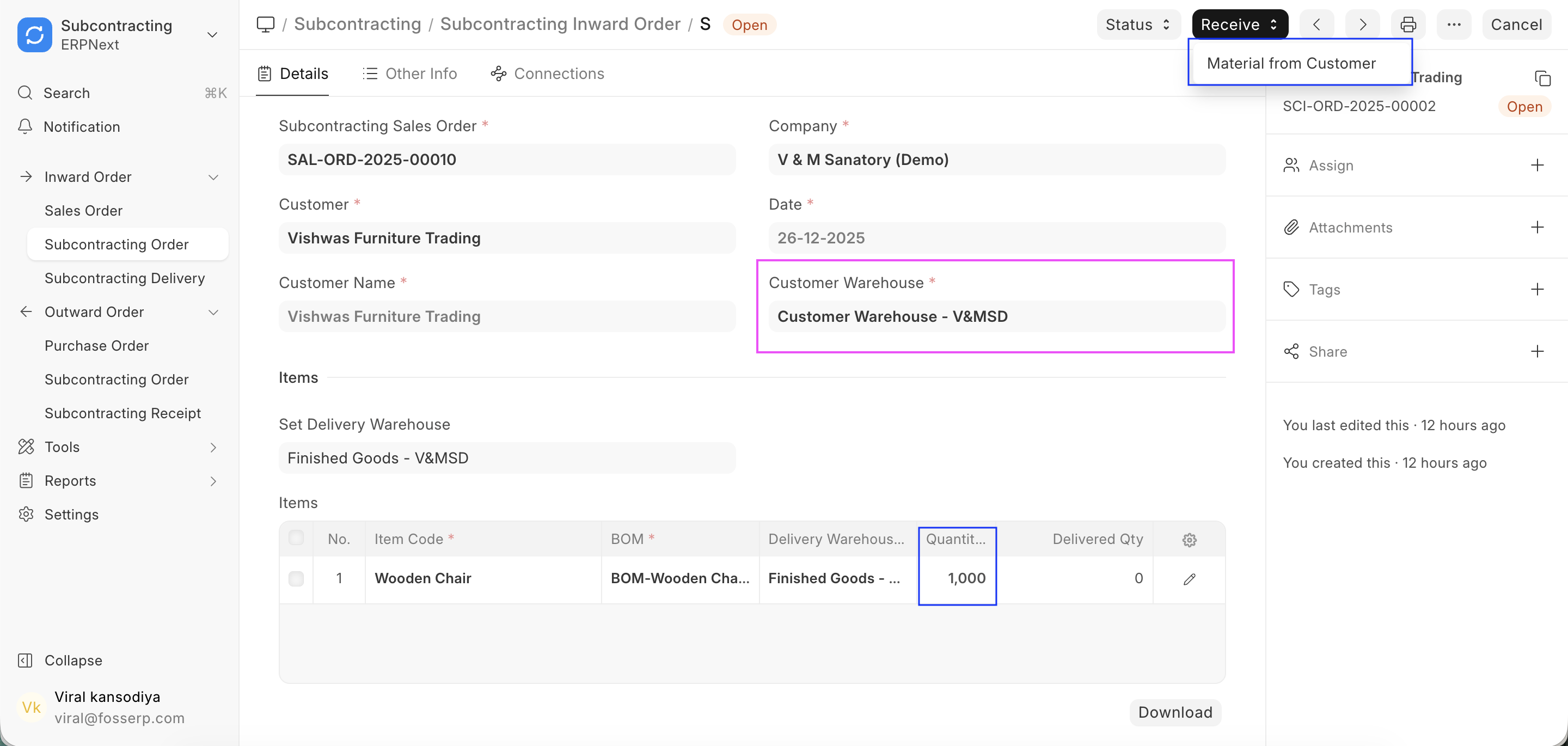
Subcontracting Inward Order interface
Important: Click on the dropdown button "Receive" and select "Material from Customer". The system will create a Stock Entry to inward materials into the customer warehouse. All details will be auto-populated; simply save and submit the stock entry.
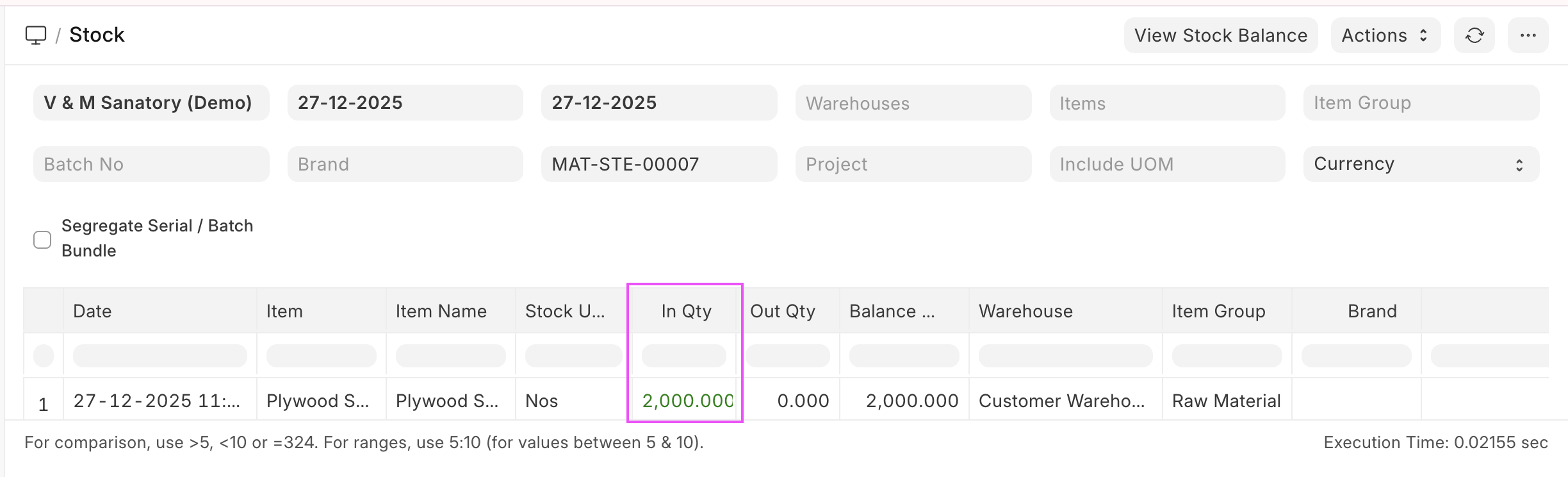
Receiving materials from customer via Stock Entry
Create Work Order from Subcontracting Inward Order
- Open the Subcontracting Inward Order
- Click on the 'Create' dropdown button
- Select 'Work Order' - the system will create a work order in Draft status
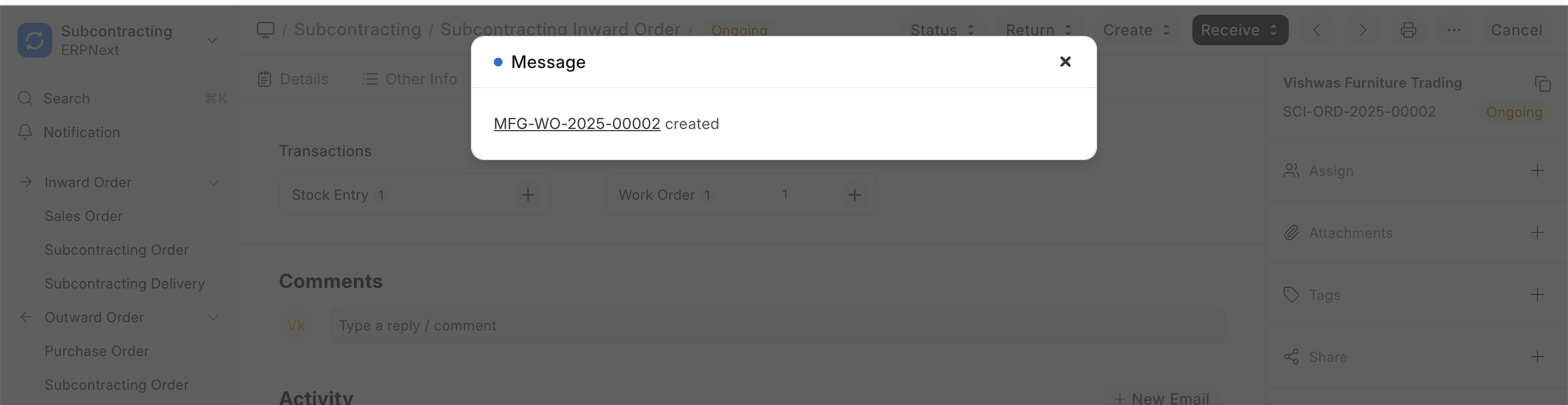
Creating Work Order from Subcontracting Inward Order
- Update any missing mandatory fields and submit the work order
- Click the 'Start' button on the Work Order to transfer materials to the work-in-progress warehouse and submit the stock entry
- Click the 'Finish' button on the Work Order to complete the manufacturing type stock entry after finishing production
Note: After completing the manufacturing process, the finished goods will be available in the Finished Goods Warehouse.
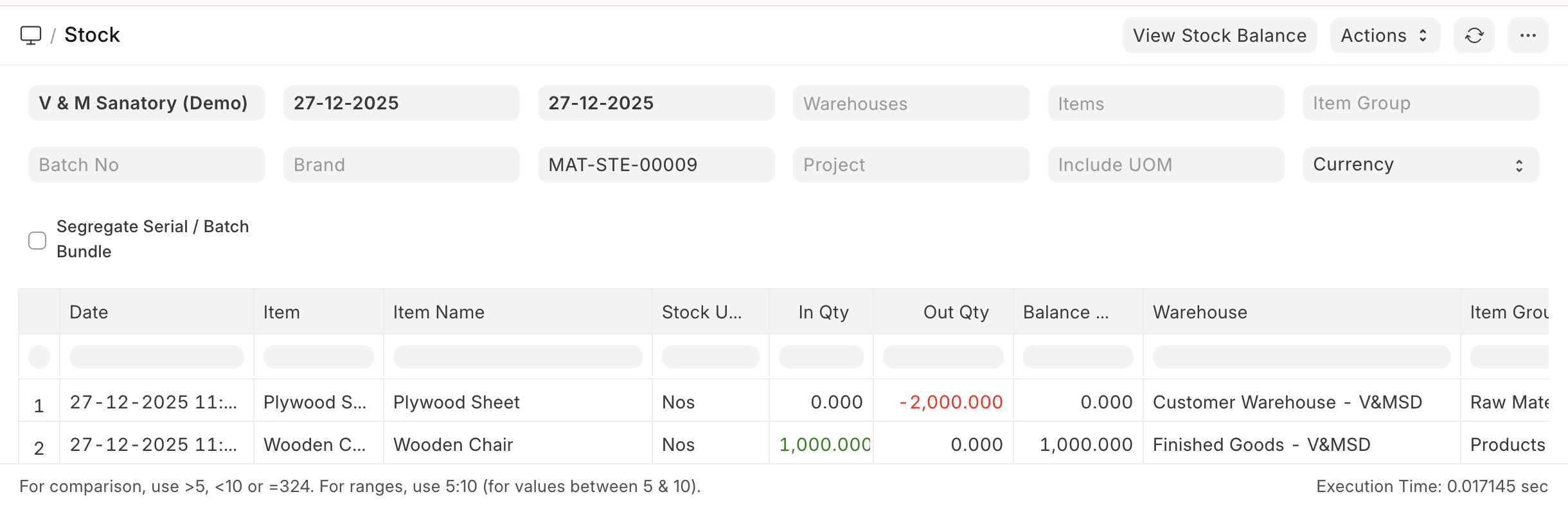
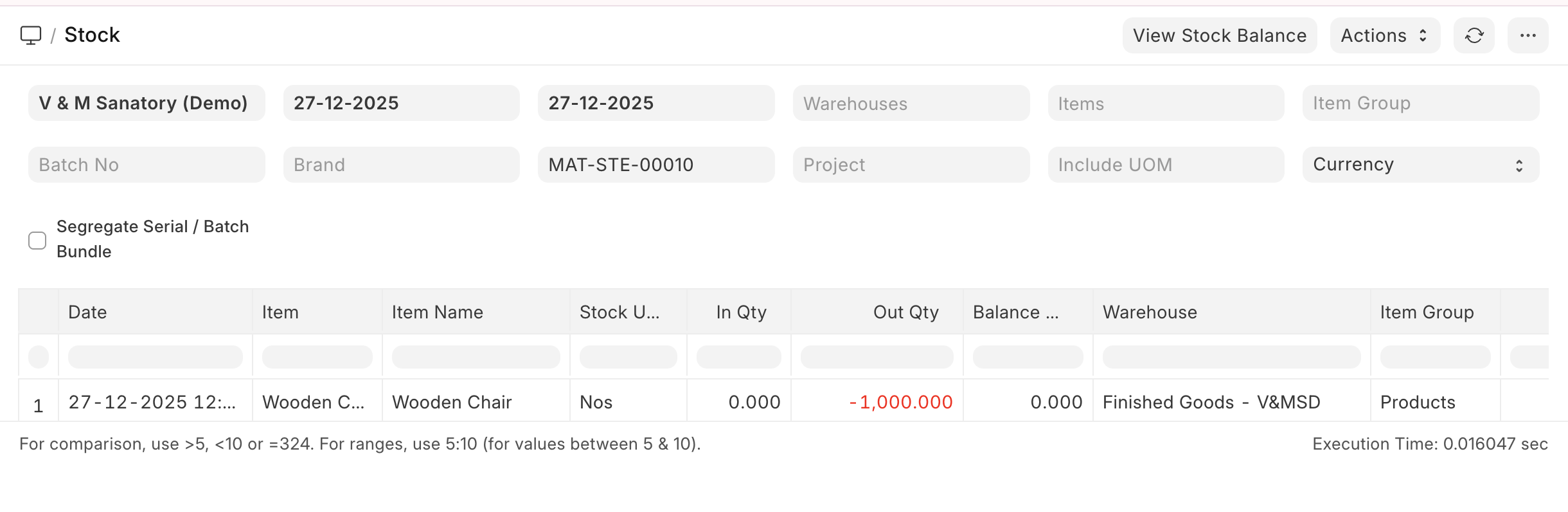
Verifying stock ledger entries after manufacturing
As shown in the image above, finished goods items are now available in the Finished Goods Warehouse. It's time to deliver the items to the customer.
- Open the Subcontracting Inward Order (status should now be 'Produced')
- Click on the dropdown button 'Create' > 'Subcontracting Delivery'
- Save and submit the Subcontracting Delivery type stock entry to deliver the finished goods
Creating Subcontracting Delivery for finished goods
Key Takeaways
- Subcontracting inward in ERPNext provides end-to-end visibility of job work processes
- Proper item configuration is crucial: service items, customer-provided items, and subcontracted items
- Dedicated warehouses for customer materials ensure accurate tracking
- The seamless flow from Sales Order to Subcontracting Inward Order automates material tracking
- Version 16 offers enhanced subcontracting features for better compliance and reporting
- The complete process includes: Sales Order → Subcontracting Inward Order → Material Receipt → Work Order → Manufacturing → Delivery

No comments yet. Login to start a new discussion Start a new discussion